

Key Takeaways
- Platform-Specific Automation: Since WhatsApp still lacks a universal scheduling button for all users, iOS relies on system-level automations while Android uses automation utilities.
- Native Feature (Status): In Feb 2026, WhatsApp beta builds (Android 26.8.11, iOS 26.7.10.72) revealed WhatsApp is working on a native “Scheduled Messages” feature. Availability varies by build/account, and the final UI may change.
- Reliability Constraints: Device-based scheduling (Shortcuts / Android automation apps) usually requires your phone to be powered on and able to run the automation at the scheduled time.
- Professional Scalability: Businesses typically schedule and automate at scale via the WhatsApp Business Platform (API), but delivery still depends on recipient/network conditions.
- Mission-Critical Alternative: SMS remains the most reliable channel for OTPs and urgent alerts due to its independence from apps and internet connectivity.
You can now schedule WhatsApp messages natively if you have the latest 2026 beta. For everyone else, will need to use iOS Shortcuts or Android automation utilities. While the built-in “long-press” feature is the future, understanding the current workarounds is essential for anyone managing time-sensitive communication.
But here is the reality check: Scheduling a “Happy Birthday” text is a hobby. Scheduling a 10,000-user marketing blast or a mission-critical One-Time Password (OTP) is an infrastructure challenge. If your business depends on these messages, relying on a phone-based “hack” is a recipe for disaster.
Whether you are looking for the new native scheduling button, using iOS Shortcuts, or managing a business blast, this guide covers every method available today.
Ways to Schedule WhatsApp Messages (Comparison)
Method | Best For | Reliability | Setup Difficulty |
Native Beta (2026) | 1-to-1 Personal Chats | High (Native) | Zero (Long-press) |
iOS Shortcuts | Personal Reminders | Moderate (System-level) | Medium (Scripting) |
Android Utilities | Routine Daily Tasks | Low (Device-dependent) | Medium (Permissions) |
WhatsApp API | Scaled Marketing | High (server-side sending) | High (Meta Approval) |
SMS Gateway | OTPs & Alerts | SMS Gateway: High (carrier-grade reach) | Low (Instant) |
The New Built-In “Long-Press” Feature (2026 Update)
In Feb 2026, reports and beta discoveries showed WhatsApp is working on a native Scheduled Messages feature in both Android and iOS beta builds.
What to expect: If your WhatsApp build has it enabled, you’ll see an option to schedule a message from the send options/menu in a chat (the exact placement and wording may differ by version). Because it’s still evolving, treat any “exact steps” you see online as version-specific.
Possible steps to use it:
- Compose: Open a chat and type your message.
- Long-Press Send: Instead of tapping the Send icon (paper plane), hold it down for 2 seconds.
- Select Schedule: A menu will pop up. Tap “Schedule Message.”
- Set Time: Choose your date and time from the picker.
- Confirm: Your message will sit in the chat with a Clock Icon until the delivery time.
Tip: Unlike old third-party apps, the native feature will “queue” the message. If you are offline at the scheduled time, it will send the moment your phone regains internet access.
How to Schedule WhatsApp Messages on Android
For Android users, scheduling WhatsApp messages typically requires using automation utilities (for example TikTask and SKEDit).
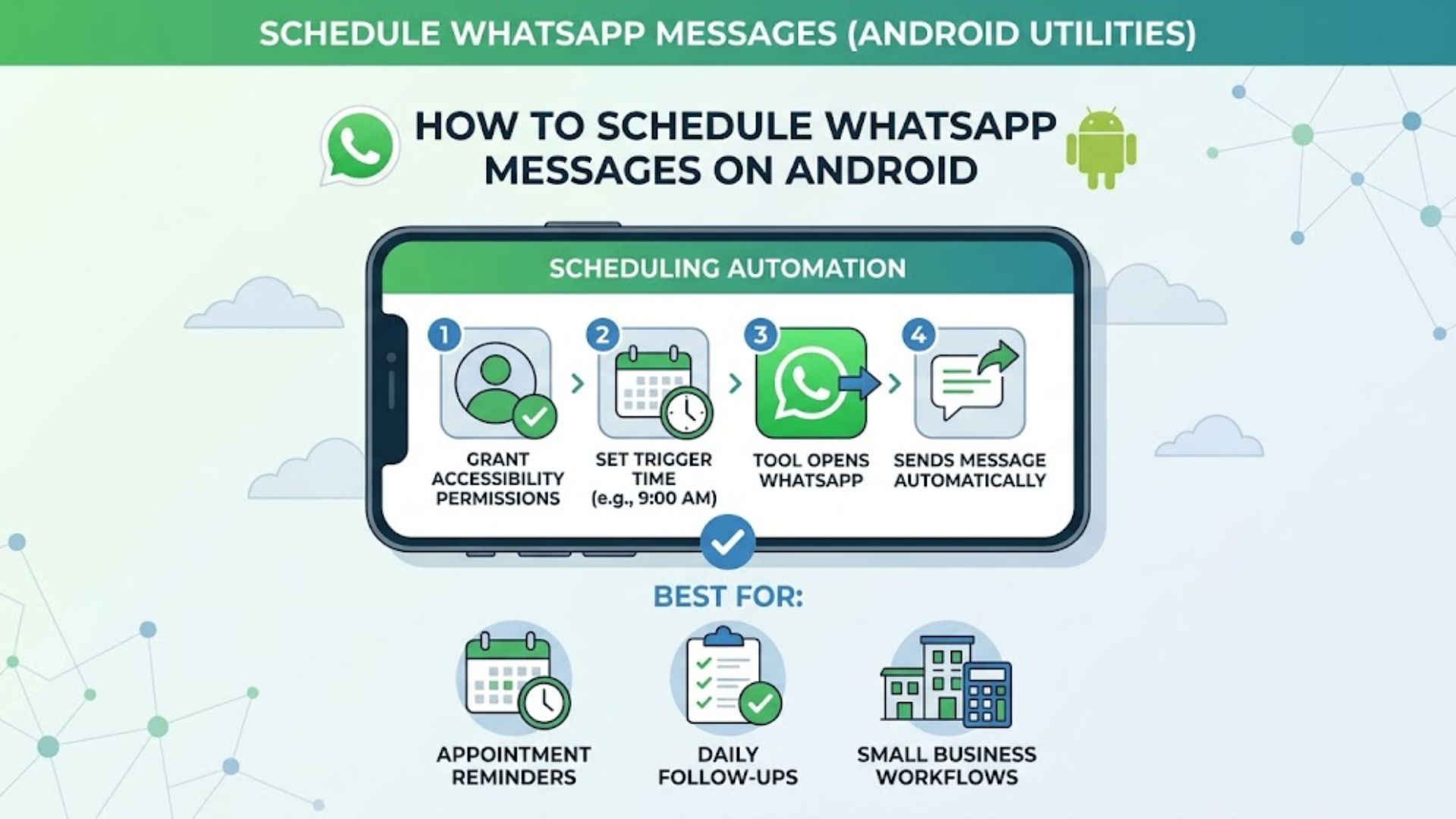
Step-by-step on scheduling message (Android):
- Download a scheduler from the Play Store.
- Grant Permissions: You must enable Accessibility Services (this allows the app to “click” send for you).
- Disable Battery Optimization: Go to Settings > Apps > [The App] > Battery > Unrestricted. If Android “sleeps” the app, the message won’t send.
- Schedule: Set the recipient, time, and message within the app.
Best for: Small business follow-ups and appointment reminders.
Limitations: If your phone has a Screen Lock (PIN/Biometric), many apps will fail to send the message unless you disable the lock or use an app that supports “Screen Wake” triggers.
How to Schedule WhatsApp Messages on iPhone (iOS)
iPhone users have a more stable “System-Level” option via the Shortcuts app, it doesn’t share your data with third-party developers but it requires a specific setup to be truly automatic.
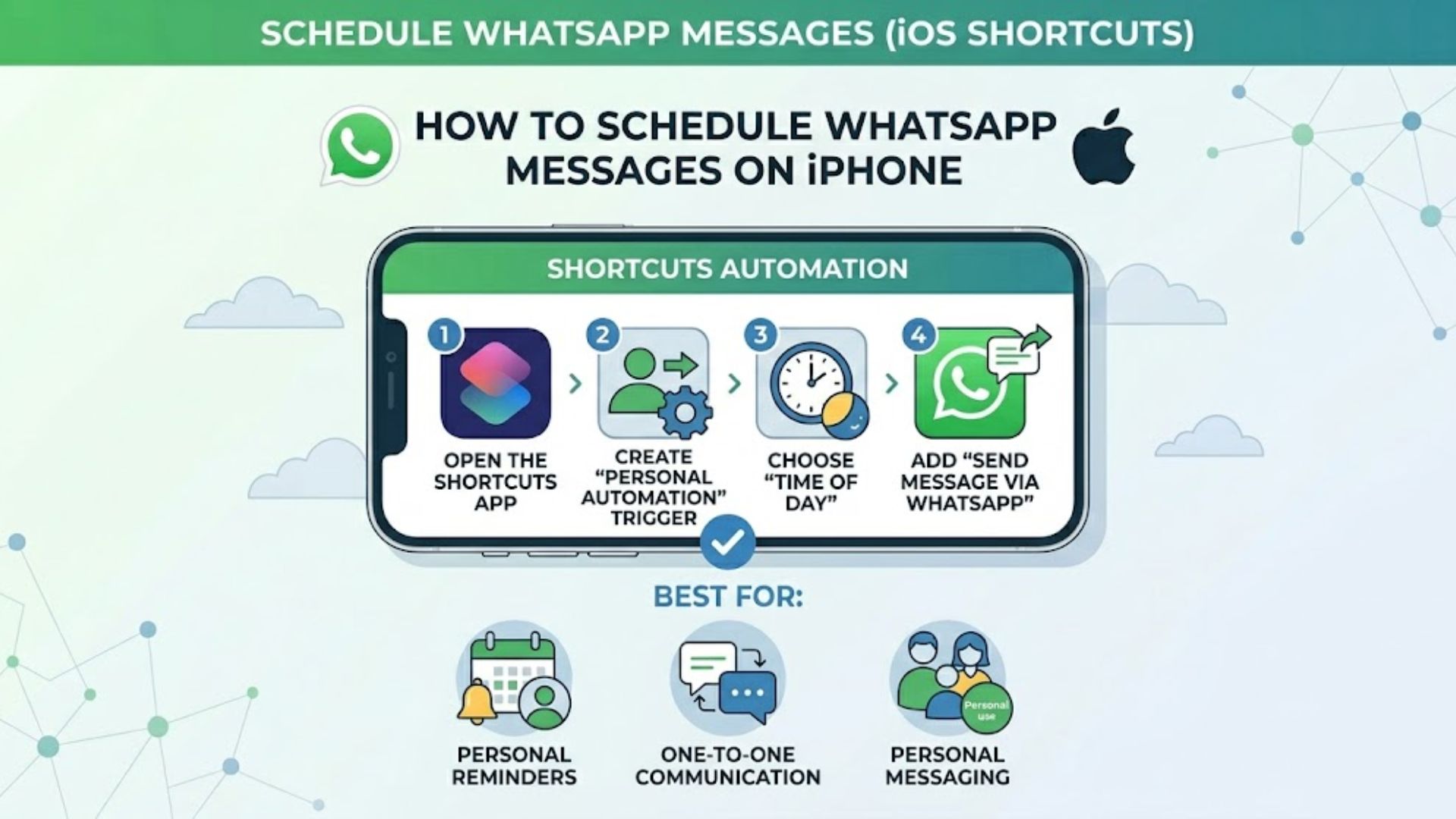
Shortcut Setup Steps:
- Open the Shortcuts app > Automation tab.
- Tap Create Personal Automation (or the + icon).
- Select Time of Day and set your desired time.
- Tap Next > Add Action.
- Search for “WhatsApp” and select “Send Message via WhatsApp.”
- Type your message and select the recipient.
Tip: Toggle “Run Immediately” and turn “Notify When Run” OFF for a silent, hands-free experience.
Best for: One-to-one communication and personal reminders.
Limitations: It is not scalable. To send to 50 different people, you have to manually build 50 different automations.
4 Tips for Perfect Message Timing
- Test your timing (don’t guess): Response rates vary by audience. Start by testing morning business hours and early evening windows, then pick winners based on your own replies/clicks.
Note: Make sure to stay compliant with MCMC SMS regulations. - Personalization is Mandatory: If you use a scheduler, ensure you include the recipient’s name. Static, robotic messages are flagged as spam by WhatsApp’s filters.
- Avoid “The Blast”: Instead of sending 100 messages at 9:00 AM, stagger them (e.g., 5 messages every 10 minutes) to mimic human behavior.
- The Hybrid Approach: Use WhatsApp for rich media engagement, but use SMS for the final “Your order is arriving now” confirmation.
The Infrastructure Gap: Why SMS Remains the Backbone of 2026 Communication.
When timing is critical (like OTPs), SMS is the most reliable choice.
Why do the pros still pay for SMS when WhatsApp is ‘free’? Because an OTP shouldn’t depend on a user’s Wi-Fi signal or background data settings. While you schedule your marketing ‘blasts’ on WhatsApp for the rich media, your mission-critical alerts belong on an SMS Gateway. It’s the difference between a ‘delivered’ checkmark and a frustrated customer.
Smart businesses don’t put all their eggs in the WhatsApp basket. They use a hybrid approach to guarantee delivery.
Why SMS Still Wins for Critical Messaging:
- Universal Reach: No app install required; works on any phone with cellular service.
- Works without internet: SMS can arrive even when mobile data/Wi-Fi is off, because it runs over carrier messaging/signaling infrastructure, but delays can still happen.
- No “App Bans”: WhatsApp may restrict or ban accounts for spam, automated, or bulk messaging. Don’t rely on personal-account “blasts” for business-critical delivery.
“Scheduling is for convenience; infrastructure is for reliability. Use WhatsApp to chat, but use SMS to confirm.”
Conclusion: Build for Reliability, Not Just Convenience
WhatsApp can help you schedule messages, but when reliability is paramount, SMS is the way to go. It’s instant, global, and dependable. When you need to guarantee delivery, SMS is your backbone.
By combining both channels, WhatsApp for engagement and SMS for mission-critical communication, you can build a messaging strategy that’s both engaging and unfailingly reliable.
If you are a business owner in Malaysia or beyond, looking to scale your “blasting” or secure your app with OTPs, stop playing with device-level hacks. Combine the engagement of WhatsApp with the unbreakable backbone of a professional SMS Gateway. Schedule your marketing, but guarantee your alerts.
Disclaimer: This guide is for informational purposes only. Availability of features may vary by region and app version. Always ensure compliance with local regulations and platform policies when scheduling bulk communications.